







Ordinary users can stay on Exchange Online Plan 1, while Plan 2 fits people who need a 100 GB mailbox, a growing archive up to 1.5 TB, or built-in Exchange data loss prevention. Plan 1 provides a 50 GB mailbox and a 50 GB archive, so the practical choice is about each person's storage and protection needs, not upgrading everyone by default.
The popular advice to “buy Plan 2 for more room” misses the important distinction: Plan 1 can also reach a 1.5 TB archive when paired with Exchange Online Archiving. For a nursing home, the smarter approach is to match licenses to roles, then separately check retention, recovery, and applications that connect to email.
Table of Contents
- What Both Exchange Online Plans Already Include
- Exchange Online Plan 1 vs Plan 2 at a Glance
- How Mailbox and Archive Quotas Fill Up
- DLP Retention and HIPAA Email Safeguards
- Apps That Still Depend on Exchange Web Services
- Assigning Licenses by Role and Next Steps
What Both Exchange Online Plans Already Include
Plan 1 fits ordinary mail. Plan 2 fits people who need a larger mailbox, a much larger archive, or Exchange data loss prevention.
Both plans provide the same hosted Exchange Online service. The facility doesn't run and patch its own Exchange mail server. Staff use business email with a custom domain, Outlook on the web or desktop, calendars, contacts, and anti-spam and anti-malware filtering. Both plans also support messages up to 150 MB. Plan 2 doesn't change how email is delivered.
A typical facility might assign Plan 1 to front desk and activities staff who use email for routine messages, calendars, and scheduling. Leadership mailboxes are more likely to need a closer look. Administrators, directors of nursing, and staff handling sensitive correspondence may have heavier active-mail needs or require additional controls.
The three differences to focus on are the primary mailbox, the archive, and built-in Exchange DLP. The comparison table lays out those limits and entitlements. Neither plan is a standalone backup, a full Microsoft 365 suite, desktop apps, or a HIPAA program. A nursing home still needs to manage security, retention, access, and recovery separately.
Email is also a common entry point for malicious messages. Staff education and safe handling practices matter alongside mailbox licensing, including the guidance in this overview of phishing scams and prevention.
Microsoft's plan details can change, so administrators should check the current service description before assigning licenses or renewing.
Exchange Online Plan 1 vs Plan 2 at a Glance
Use this as the buying sheet. Prices aren't listed because Microsoft changes them. Check Microsoft's current price list before budgeting.
| Item | Plan 1 | Plan 2 |
|---|---|---|
| Primary mailbox | 50 GB | 100 GB |
| Archive mailbox | 50 GB | 1.5 TB, starts at 100 GB and auto-expands |
| Largest message | 150 MB | 150 MB |
| Anti-spam and anti-malware | Included | Included |
| Custom domain, calendar, contacts | Included | Included |
| Built-in Exchange DLP | Not included | Included |
| Path to a 1.5 TB archive | Add Exchange Online Archiving | Included |
| Standalone backup or HIPAA program | No | No |
| Price | Check current Microsoft list | Check current Microsoft list |
Microsoft's Exchange Online service description lists Plan 1 with a 50 GB primary mailbox and 50 GB archive, and Plan 2 with a 100 GB primary mailbox and 1.5 TB archive. Plan 2's archive starts at 100 GB and can expand automatically when auto-expanding archiving is enabled, up to the stated capacity.
The primary-mailbox difference is straightforward: Plan 2 holds twice as much active mail. That can reduce pressure to clean up sent items and attachments, but a larger mailbox won't help with every email problem.
The archive is the bigger storage distinction. Plan 2's nominal archive capacity is 30 times Plan 1's included archive. But Plan 1 can reach a 1.5 TB archive with the separate Exchange Online Archiving license. That makes Plan 1 plus archiving a real alternative when the user needs long-term retention but not Plan 2's other entitlements.
Both plans support messages up to 150 MB. If a message is rejected because its attachment exceeds that limit, upgrading from Plan 1 to Plan 2 won't fix it. And mailbox capacity alone doesn't establish legal-hold readiness, HIPAA compliance, or recoverability. For a broader view of how organizations compare cloud email and collaboration services, see this guide to cloud collaboration options for enterprise teams.
How Mailbox and Archive Quotas Fill Up
A larger mailbox helps only the people who are running out of working space. The primary mailbox holds current conversations; the archive holds older mail that still needs to be available. In a long-term care facility, family correspondence, vendor invoices, survey records, and scanned PDFs can accumulate in a few leadership accounts rather than across every employee's mailbox.
Plan 1 provides a 50 GB primary mailbox, while Plan 2 provides 100 GB. For a director of nursing or administrator with years of messages and attachments, the extra working space can reduce cleanup. Assigning Plan 2 to every employee is a poor use of the license budget if only a few accounts are nearing their limits.
Archive capacity is a separate decision. Plan 1 includes a 50 GB archive. Plan 2 includes a 1.5 TB archive, which starts at 100 GB and can expand automatically when auto-expanding archiving is enabled. Plan 1 can also reach a 1.5 TB archive with a separate Exchange Online Archiving license.
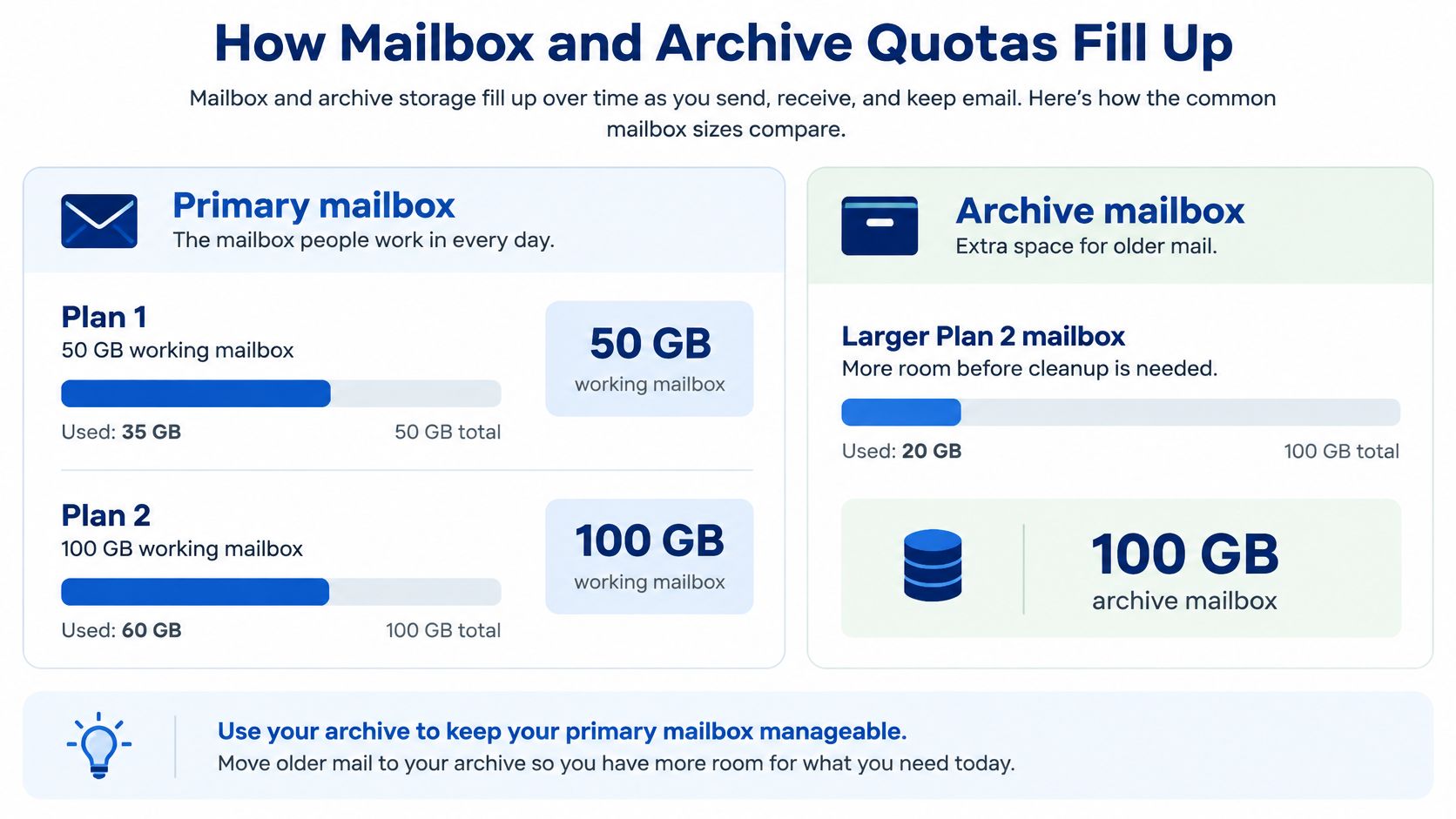
An archive is not a backup. A larger quota won't restore a mailbox that is deleted, encrypted, or corrupted. Recovery requires separate backup and tested restore procedures.
RDE Technologies provides onsite and offsite data backup, data retrieval, and offsite replication. These services address recovery separately from Exchange mailbox and archive capacity.
Review mailbox-usage reports and identify the accounts approaching their limits. Change licenses or add archiving only for those users, then check usage again after the change.
The embedded video, “Exchange Online Plan 1 vs Plan 2,” offers a visual comparison of the plans.
DLP Retention and HIPAA Email Safeguards
Exchange data loss prevention (DLP) can inspect messages and attachments for sensitive-information patterns, then apply actions such as blocking a message, warning the sender, or recording the event for review. Plan 2 includes built-in Exchange DLP. Plan 1 includes core email features such as filtering, custom domains, calendars, and archiving, but not the same DLP entitlement.
That difference can matter in a nursing home. Email may contain resident names, orders, billing details, or family complaints even when the electronic health record, such as PointClickCare, is the system of record. DLP can reduce casual forwarding of sensitive messages, but it can't prevent every disclosure or replace sound staff practices. Microsoft's Exchange business-plan comparison describes DLP as a Plan 2 feature and makes clear that the mailbox license alone isn't a complete security program.
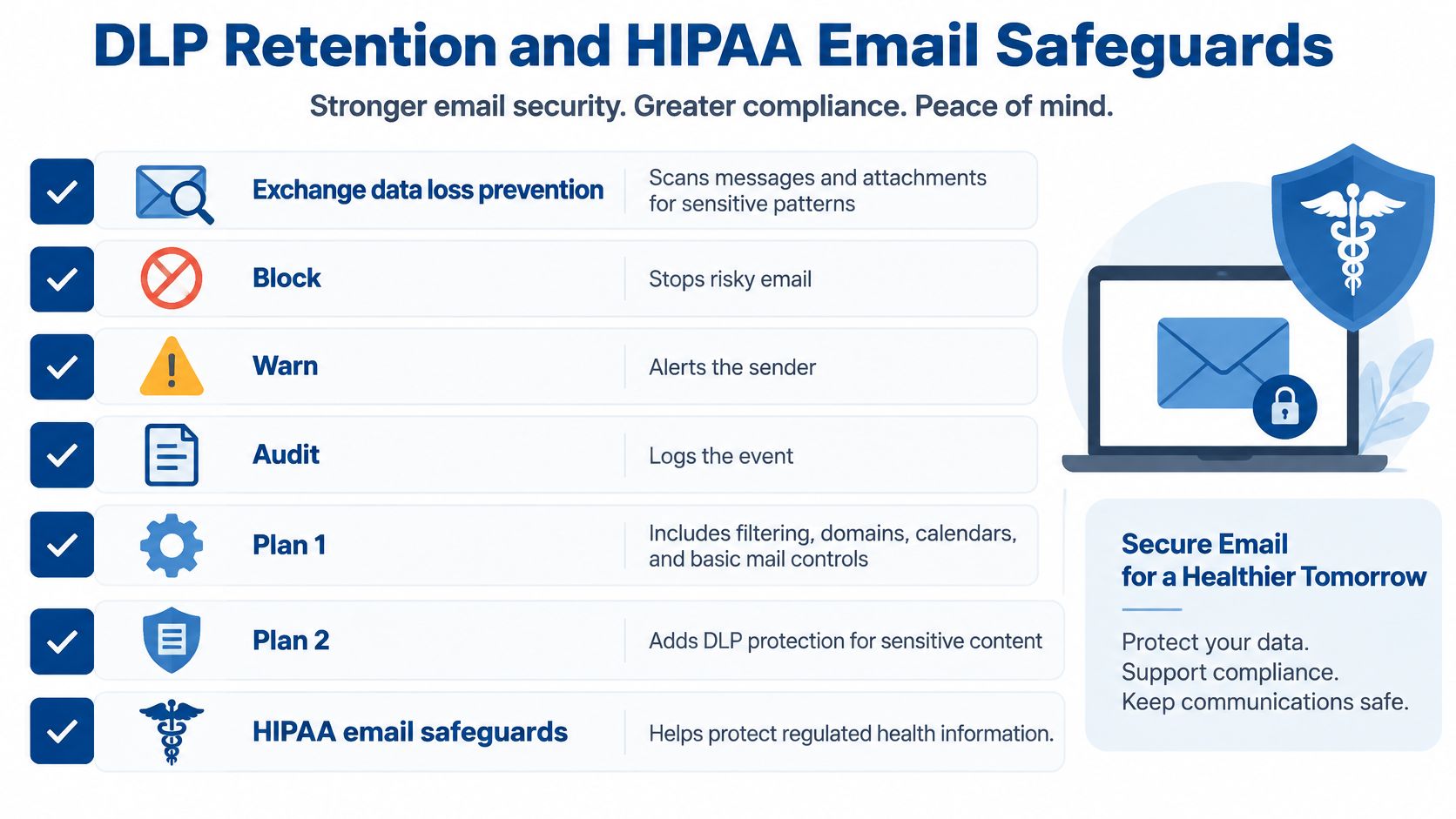
What the mailbox license doesn't do
The HIPAA Security Rule, 45 CFR Part 164 Subpart C, includes requirements for access controls, audit controls, integrity protections, and transmission security for electronic protected health information. Its administrative safeguards also address policies and workforce training. A Plan 2 license doesn't, by itself, make a facility HIPAA compliant. Administrators should confirm how the rules apply to their facility with their compliance officer or counsel.
On either plan, the facility still needs to:
- Require multifactor authentication. Apply it to staff accounts and review exceptions.
- Limit shared mailbox access. Give access only to staff who need it and review the list when job duties change.
- Set retention intentionally. Work with counsel on how long mail must be retained instead of keeping everything forever.
- Remove access when staff leave. Review accounts and permissions promptly during offboarding.
- Keep endpoint protection current. Secure the devices staff use to read or send mail.
Retention management, journaling, eDiscovery content search, and transport rules are distinct feature areas. A larger mailbox doesn't automatically create a defensible records program. The same goes for the CMS emergency-preparedness communication plan under 42 CFR 483.73: an email license isn't the plan, and the facility still needs a documented way to communicate during an outage.
For a plain-language overview of health email safeguards, administrators can consult this CloudOrbis guide to HIPAA email. RDE Technologies provides IT security management that includes network security, firewalls, content filtering, managed antivirus, desktop patch management, and endpoint ransomware protection. More information is available about IT services for HIPAA-compliant operations. Microsoft's feature details can change, so confirm current entitlements before purchase.
Apps That Still Depend on Exchange Web Services
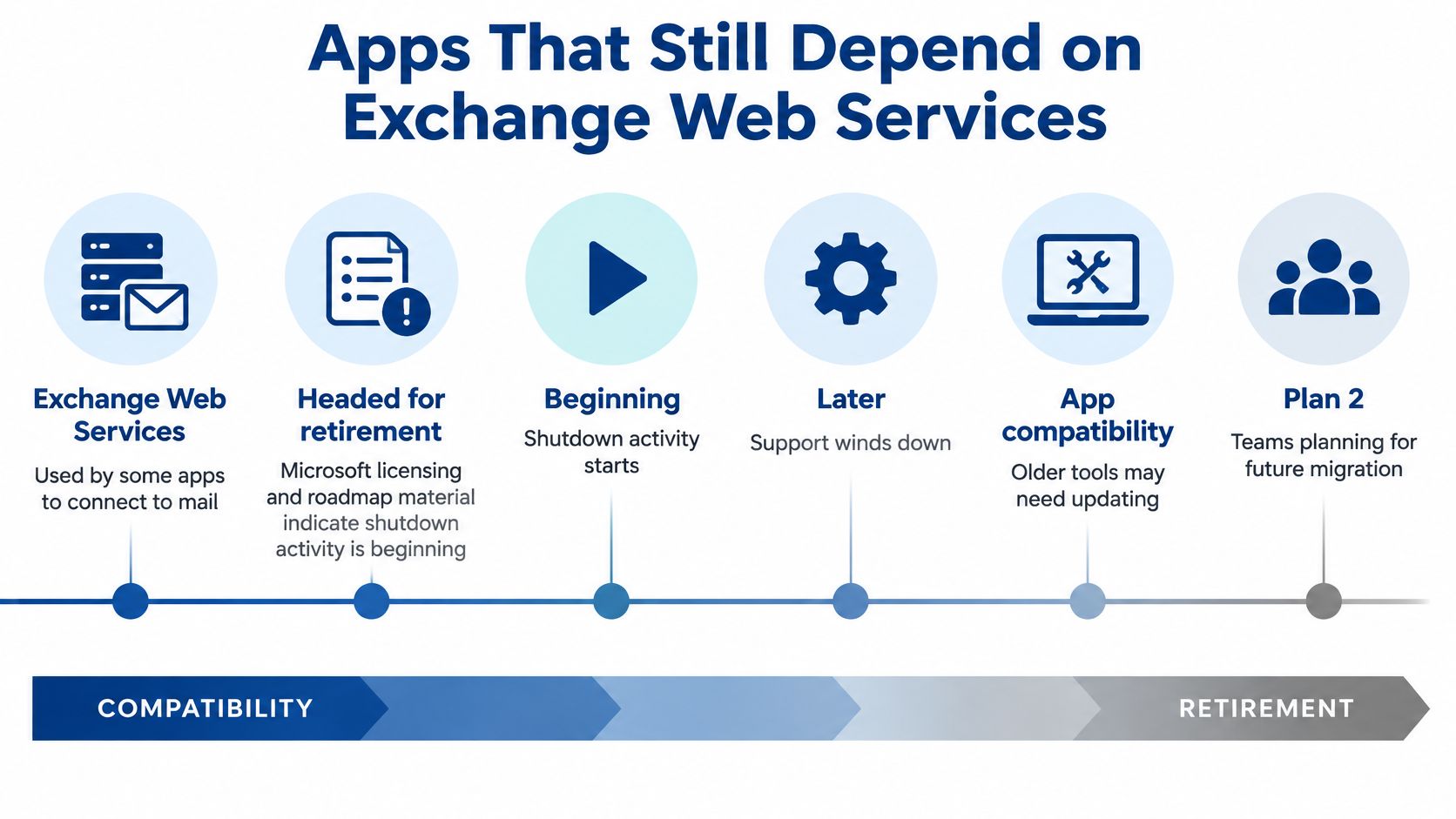
Storage isn't the only licensing concern. Exchange Web Services (EWS) is a connection method used by some third-party applications to work with Exchange Online. A retirement plan may affect backup, archive, migration, scanner, CRM, or line-of-business applications. A report from Directions on Microsoft's Exchange Online roadmap describes retirement activity beginning in 2026, with broader tenant impact expected later in 2026 unless administrators delay the change.
Because it's now late October 2026, check Microsoft's current retirement notice immediately. Don't assume a familiar app still works, and don't treat the stated schedule as fixed. Dates can move.
Plan 2 does not modernize an integration. Both plans are Exchange Online licenses, so the application's protocol compatibility must be checked separately.
Use this inventory to find dependencies:
- List every mail-connected tool. Include applications that read, send, archive, journal, or export mail. In a nursing home, that may include EHR alert email, multifunction scanners that file to a mailbox, after-hours on-call notifications, and archive or journal appliances.
- Identify the protocol. Ask each vendor whether the connection uses EWS, Microsoft Graph, SMTP, IMAP, or another interface.
- Get a replacement date in writing. A general assurance that an update is coming isn't a migration plan.
- Test before the tenant deadline. Pilot the replacement with a test mailbox and confirm the workflow works before making the change broadly.
Law firms should check practice-management software in the same way. If a vendor can't identify the protocol or provide a confirmed replacement date, treat that application as an unresolved risk. Waiting for a mailbox-full warning to discover that a scanner can't file documents is avoidable.
Assigning Licenses by Role and Next Steps
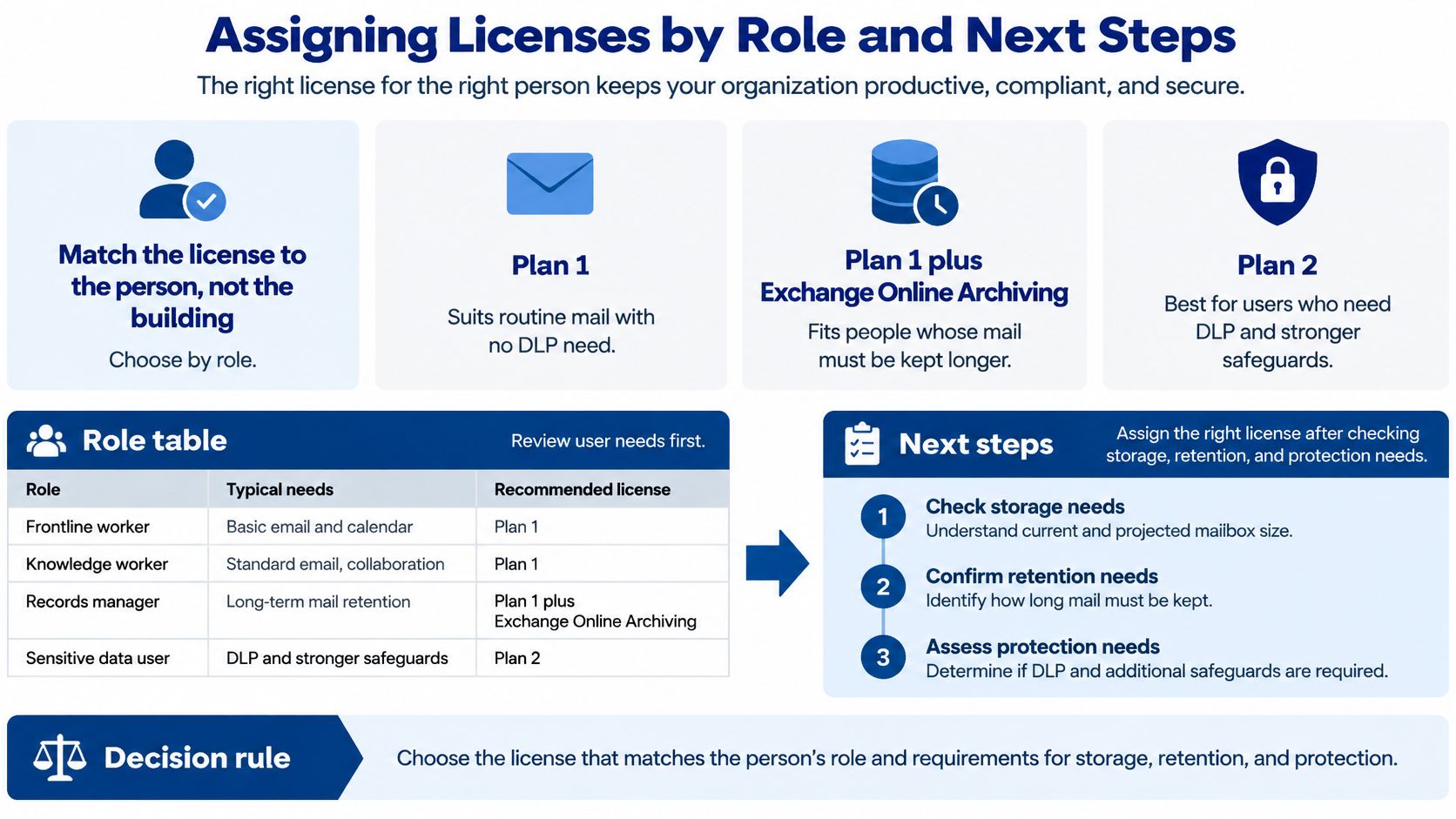
| Role | Assign | Why |
|---|---|---|
| Front desk, activities, routine office | Plan 1 | Fits routine email needs without requiring DLP |
| Billing or admissions with small mailboxes | Plan 1 | Move up if the 50 GB mailbox limit becomes a problem |
| User who needs years of old mail retained | Plan 1 plus Exchange Online Archiving | Adds an archive without requiring Plan 2 |
| Administrator, director of nursing, or attorney with heavy active mail or PHI | Plan 2 | Provides a 100 GB mailbox and built-in Exchange DLP |
| Whole company by default | Do not assign | Avoid paying for features many users do not need |
Assign licenses by role, not by building. Microsoft's Exchange Online plan information describes adding Exchange Online Archiving to Plan 1 for users who need extended retention. Choose Plan 2 for a user who needs both a larger active mailbox and Exchange DLP. Plan 1 plus archiving can meet retention needs without assigning Plan 2 across the board.
Start with mailbox-size reports. Identify users nearing Plan 1's 50 GB limit, users with years of attachments, and mailboxes that hold PHI, client matters, or financial data. Compare two options: Plan 2 for every flagged user, or Plan 1 plus archiving for retention-only needs and Plan 2 where DLP or a larger active mailbox is required. Check Microsoft's current pricing before budgeting.
A Long Island law firm can use the same role-based approach, separating routine office email from attorneys with heavy active mail or confidential client correspondence. Multi-building operators should set a consistent policy and review usage at each facility. Journaling, eDiscovery, and retention policies still need deliberate design. A license choice does not create a records program, and email should not replace shared clinical systems as the record of care.
RDE Technologies offers hosted Exchange, managed IT and maintenance, backup, security, network management, and IT assessments. Its assessments cover areas including data storage, risk, infrastructure, applications, business continuity, and network security. Review mailbox capacity, retention needs, backup recovery, and email-connected applications together. For related guidance, read this article on health informatics and protecting patient data.
RDE Technologies can review mailbox capacity, retention needs, backup recovery, and email-connected applications as part of an IT assessment. Use the “Request a call back” form or request a free quote at rdetech.com.