







A late-afternoon outage can leave a New York office guessing. Email stops syncing, calls start breaking up, and no one knows whether the cause is a password, an internet circuit, or a switch in a locked closet. The right support arrangement should identify who owns that problem and how the office keeps working while it's fixed.
For administrators and owners comparing IT support in NYC, the key distinction isn't just how quickly someone answers a ticket. It's whether the service covers the office's actual network, phones, devices, backups, and after-hours needs. This guide lays out what each model includes, what to verify before signing, and how to plan a provider switch. RDE Technologies describes its IT support in NYC as a combination of managed services, remote support, and on-site help.
Table of Contents
- Help Desk, On-Site, or Managed IT
- What a Managed Week Actually Includes
- Backups You Can Restore Under Pressure
- Phones, Wi-Fi, and After-Hours Coverage
- IT Support Inside a Nursing Facility
- How to Switch Providers Without a Monday Outage
- Questions to Ask Before You Sign
Help Desk, On-Site, or Managed IT
These three terms describe different purchases. A help desk troubleshoots user issues remotely. On-site support puts a technician in the building for work that remote tools can't do, such as cabling, wireless installation, or switch repair. Managed IT is ongoing responsibility for maintaining and monitoring systems, with an agreed process for support outside business hours.
| Model | Best fit | What you should get | What it usually omits | When it fails you |
|---|---|---|---|---|
| Help desk only | A small office with stable gear and an internal person who can meet a technician | Remote fixes for passwords, email, printers, and software | Cabling, switch repair, wireless design, and after-hours ownership | The problem is in the wall, the closet, or the ISP and nobody local can see it |
| On-site break-fix | Offices that need installs or hardware repair but still direct the work | Scheduled visits for PCs, cabling, wireless, and failed switches | Continuous monitoring, patching, tested backups, and a night-time plan | Failures pile up between visits and the same outage repeats |
| Managed IT with remote and field support | Owners who want one party maintaining the whole system | Help desk, remote support, on-site work, network care, security, and backup | Anything not written into scope, such as buying every new PC | The contract lists tools but nobody tests restores or answers after hours |
Read across each row and focus on the last column: who takes responsibility when work stops? A help desk can fix a locked account but can't reseat a failed switch from another borough. A break-fix technician can repair hardware but may not be watching for a recurring fault. A managed provider can cover more ground, but the contract still needs to name the systems, maintenance, and hours included.
New York City's available broadband doesn't guarantee a reliable workplace network. A New York State Comptroller analysis found that, as of December 2023, fixed broadband at speeds of at least 25/3 Mbps was available to 98.1% of residents, while 74.9% of households accessed the internet through fixed broadband and 14.8% relied on cellular data only, according to the Comptroller's broadband analysis. For an office or care facility, the useful question is whether the internal network, wireless, devices, and backup connections are planned and maintained, not whether service is available nearby.
For a small law office, help desk support may be enough if an office manager can coordinate local repairs. A multi-site healthcare operator may need centralized monitoring, field support, and clear responsibility for each building. Either way, the contract should make coverage and ownership concrete.
What a Managed Week Actually Includes
A managed IT provider should work like a building superintendent who changes filters before the boiler fails, not only the person called after a pipe bursts. The practical value is in routine work that catches issues and keeps systems organized, as well as support when an employee can't get a task done.
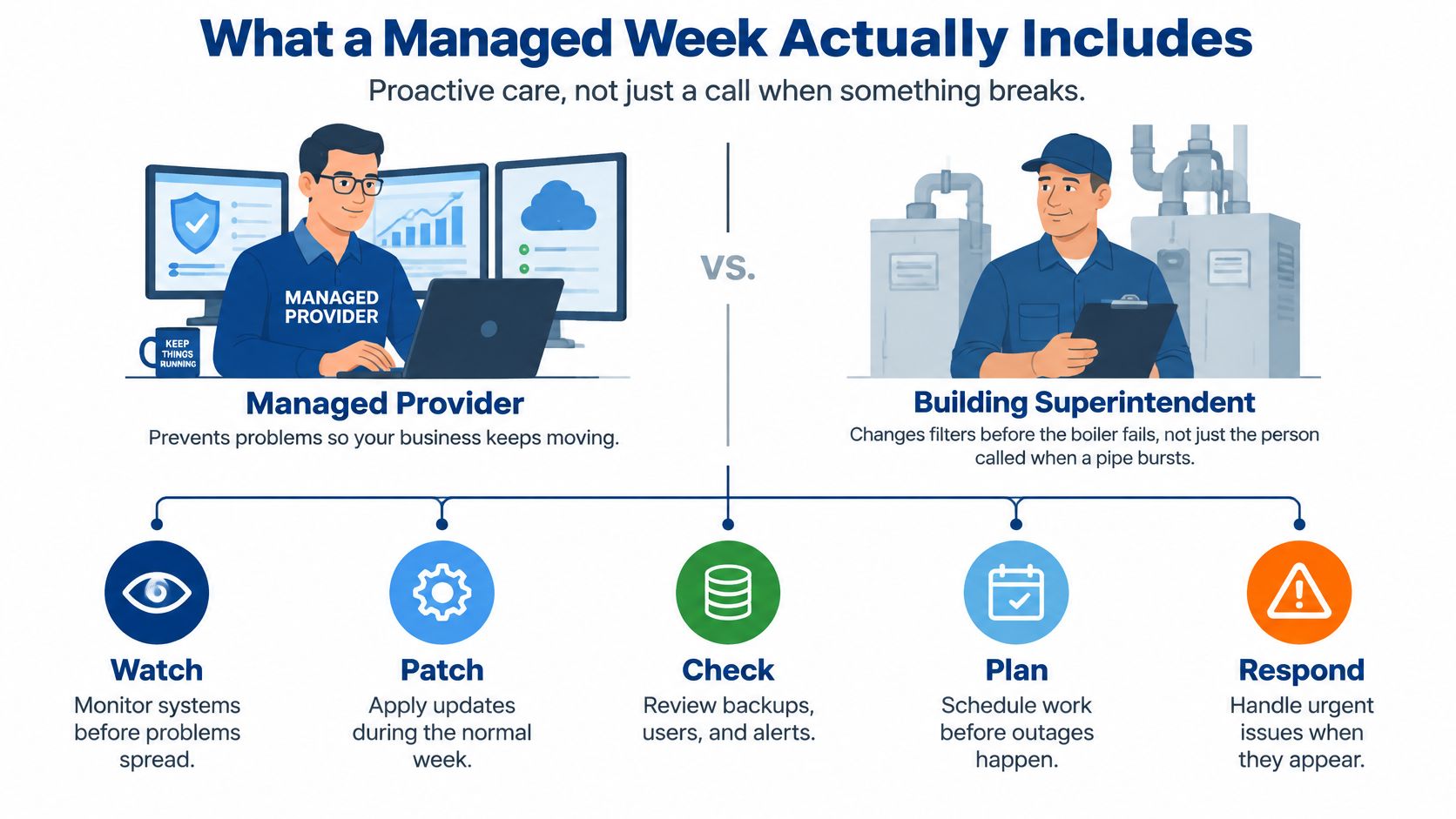
The recurring work behind the help desk
A normal week can include checking server and network alerts, applying software patches, reviewing backup results, and updating access when staff join or leave. The provider also answers user questions and sends a field technician when a remote session can't resolve a physical problem.
Consider three ordinary tickets. An attorney locked out before a filing needs account access restored and a clear way to reach support. A front desk that can't print may need remote troubleshooting first, then an on-site check if the printer, cabling, or network connection is the cause. A switch reporting a failed fan may need a technician to inspect the network closet and arrange repair before the device fails completely.
RDE Technologies offers remote support through an online remote support and collaboration portal. For buyers, the main point is to confirm that remote assistance is paired with an agreed route to on-site work when the issue can't be solved from a screen.
Put the boundaries in writing
The agreement should name the systems and tasks included. Ask whether it covers computer and server maintenance, network management, wireless installation, network cabling, IT security, data backup, VoIP phone systems, web hosting, and new technology setup. For security, clarify which activities are included, such as monitoring, firewall management, antivirus, patching, and endpoint ransomware protection.
Some work may be outside a routine support agreement unless it's added. Purchasing every workstation, training every employee, and building a marketing website are examples to discuss rather than assume. The same goes for project work, such as a large cabling job or a new phone system.
Before a sales call, mark up this short scope checklist:
- Monitoring: Who watches servers, network devices, and security alerts?
- Maintenance: Who applies patches and checks backup status?
- Field work: Who visits when remote support isn't enough, and what triggers a visit?
- Included systems: Which locations, devices, applications, and phone services are covered?
Backups You Can Restore Under Pressure
A backup job that finished successfully doesn't prove that anyone can get the business running again. The test is whether staff can restore the right information, confirm that it's usable, and do so without bringing compromised files back into production.
CISA recommends the 3-2-1 backup approach: keep three copies of important data, use two different storage media, and keep one copy off-site. It also recommends offline backups and restoration tests, because ransomware may reach copies that remain accessible from compromised systems. The CISA ransomware guidance advises testing both full and partial restores and knowing how to access critical files without an internet connection.
Two terms help an administrator set expectations. The recovery-point objective (RPO) describes how much recent work the organization can afford to lose, such as changes to email, client files, or billing records. The recovery-time objective (RTO) describes how long the organization can wait before a system or workflow must be usable again. These targets should reflect business needs, not assumptions about what a backup product can do.
For a law firm, the restore test should include client files and the calendar. At a care site, the priority may include clinical and billing data. A useful guide to planning a backup schedule can help an organization decide how often different information needs protection. For a broader view of continuity planning, why backups alone cannot prevent business downtime explains why recovery also depends on the systems and processes staff need to keep working.
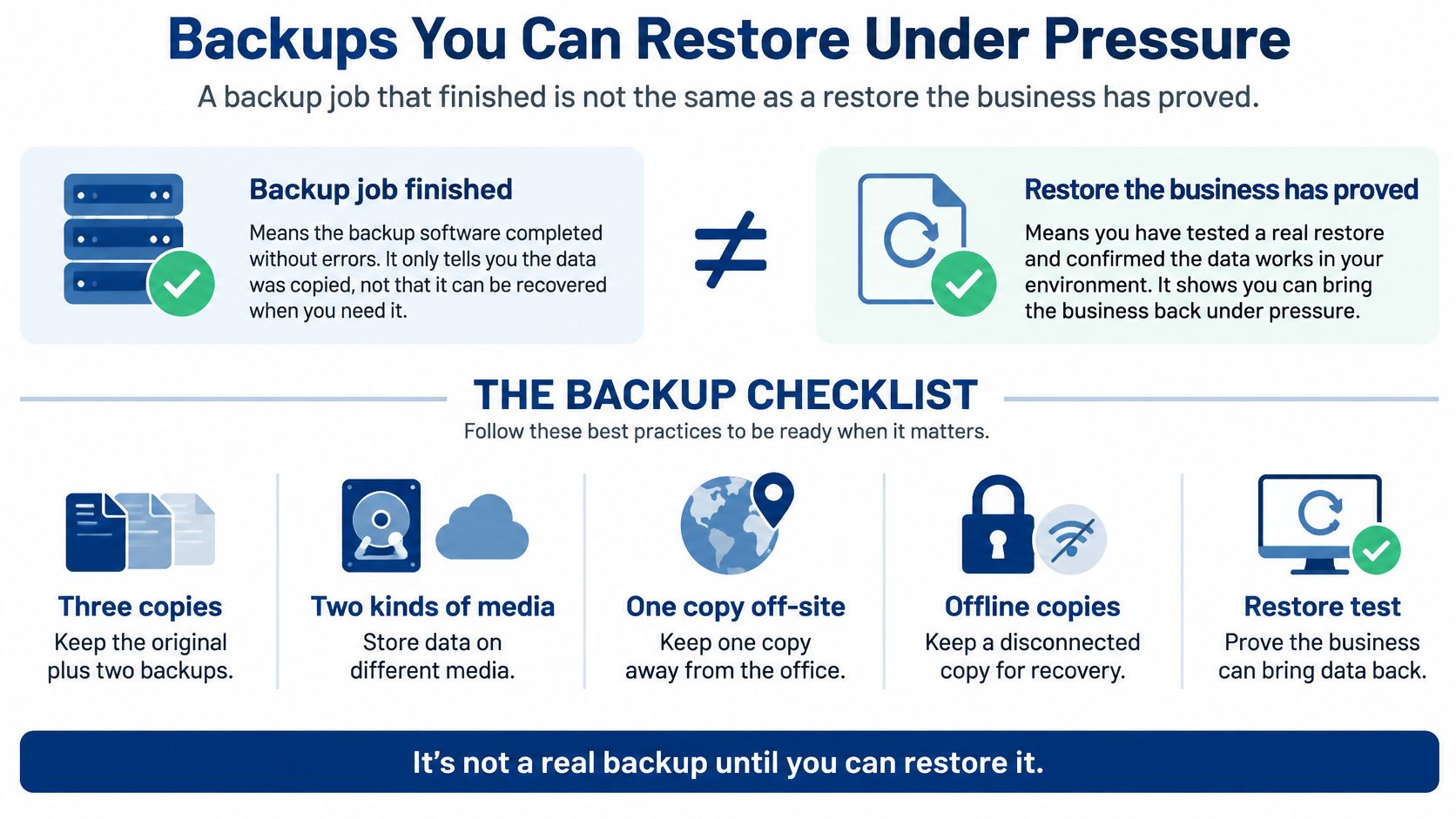
A practical restore acceptance test
The test should be documented, repeatable, and conducted somewhere isolated from live systems:
- Choose representative data. Select a sample of files, a mailbox, and one application database.
- Restore to an isolated location. Don't overwrite live data to see whether the copy works.
- Check usability. Open the files and confirm that the application data is consistent.
- Record elapsed time. Compare the result with the time the business can tolerate.
- Check isolation. Confirm that at least one backup copy can't be changed from the production network.
- Repeat and keep a record. Schedule more tests and preserve the results.
NIST's cybersecurity framework guidance calls for protecting and testing backups and restores, including keeping some copies offline and off-site. An immutable copy still won't help if no one knows how to restore it, who approves the work, or which system should come back first. Ask the provider for the date of the last restore test and the time it took, not just a backup brochure.
Phones, Wi-Fi, and After-Hours Coverage
A fast internet plan can still produce poor calls. Latency affects interactive services such as internet phone calls and conferencing, and packet loss degrades them. The FCC broadband measurement report notes that approximately 1% packet loss is commonly treated as the point where highly interactive applications such as VoIP experience significant quality degradation, as described in the FCC's fixed broadband report.
| Check | What good enough looks like | Look here first | What will not fix it |
|---|---|---|---|
| Packet loss | Stay well under the roughly 1 percent point where VoIP quality drops | Wi-Fi interference, uplink saturation, faulty cabling, ISP circuit | Replacing handsets while loss remains |
| Latency | Low and steady enough for calls and screen-sharing; no single FCC office target | Congested WAN, weak Wi-Fi, hairpin VPN | Buying a faster plan if the path is unstable |
| Jitter | Little variation during a live call | Overloaded switches and missing queues | A new desk phone on the same congested LAN |
| WAN utilization | Room left at the busy hour for voice plus backups | Backup jobs overlapping office hours | QoS alone when the circuit is full |
| Failover | A tested second path and working phones if the main circuit dies | ISP handoff, firewall rules, VoIP failover | An untested spare modem in a closet |
Ask the provider to baseline round-trip latency, jitter, packet loss, WAN utilization, and failover behavior during busy periods. If packet loss approaches that roughly 1% point, troubleshooting should start with Wi-Fi interference, a full uplink, faulty cabling, a congested ISP circuit, and traffic queues, not a handset replacement. A voice VLAN and quality-of-service markings can protect calls on the local network, but they can't repair loss already introduced by the carrier.
Test the path and the person
Two straightforward actions can reveal gaps: request a week of busy-hour measurements, and place a test call using the backup internet circuit. A second path matters only if the phone system works over it and someone has checked the failover process. For background on the phone-system options, see this explanation of what VoIP phone service involves.
After-hours coverage is a separate question from internet redundancy. A useful agreement identifies whether a person can be reached at night and on weekends, whether that person can connect remotely, and when a site visit is appropriate. For multi-site operators, alerts should identify the building with the problem rather than report only that “the network” is degraded.
A 24/7 staffed help desk is the standard to look for, not an answering machine that waits until Monday. If the business also needs someone to handle calls when staff are unavailable, this overview of setting up business call answering covers that separate operational need.
IT Support Inside a Nursing Facility
During a system outage, a nursing facility may lose access to charting, medication workflows, nurse call, or communication between shifts. Administrators need to know which care processes can continue, who is responsible for restoring access, and how staff will communicate in the meantime.
The HIPAA Security Rule requires covered entities to conduct an accurate and thorough risk analysis of potential risks and vulnerabilities to the confidentiality, integrity, and availability of electronic protected health information (ePHI). That analysis helps the facility choose reasonable security measures. It should examine risks across the environment, rather than treating a virus scan as a full security review. HHS explains the requirements in its HIPAA Security Rule materials.
A facility review can cover the systems used for resident care and administration: EHR access, medication and clinical systems, nurse-call infrastructure, resident and staff Wi-Fi, workstations, remote access, and billing. For a multi-building operator, ask for findings by facility. Controls at one site do not establish that other buildings have the same safeguards.
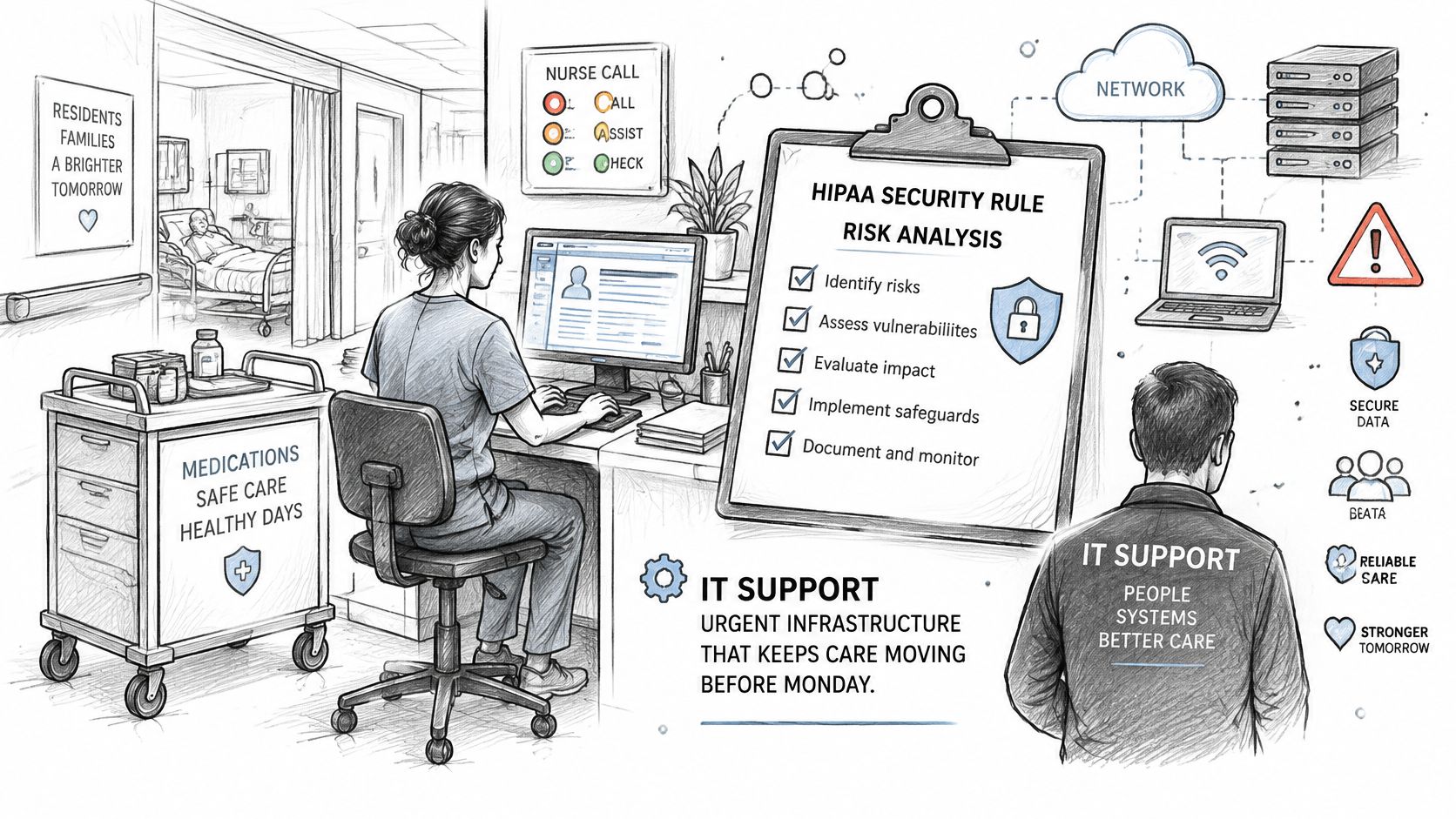
Plan for emergency access and operations
HIPAA contingency planning includes backup and restoration, procedures for continuing critical work in emergency mode, and ways to obtain necessary ePHI when normal access is unavailable. The plan should identify who can activate emergency access, how staff are authorized, how activity is monitored, and how normal access controls are restored.
During an outage, staff need practical instructions: which paper census and medication procedures to follow, how to communicate if the usual phone path fails, and how to confirm clinical access has been restored. Assign clear ownership for nurse-call equipment and resident Wi-Fi as part of continuity planning. Administrators can include nurse-call system planning in that discussion.
CMS emergency-preparedness expectations also apply to nursing homes, with details depending on the facility and its circumstances. Confirm applicable survey and compliance requirements with the facility's compliance officer or counsel.
Skilled nursing facilities can ask RDE Technologies about available assessment options. As an IT consulting and support company based in Oceanside, New York, RDE provides managed services, infrastructure support, and technical assistance for businesses.
How to Switch Providers Without a Monday Outage
A provider switch can fail before the new support team begins work if the old company still holds the only administrator passwords. The handoff should transfer control of systems, document dependencies, and test critical services before the old access is removed.
Inventory the environment. List each site, user group, internet circuit, phone number, warranty, line-of-business application, and backup location. Include landlord telecom closets, multi-floor suites, and a second-borough office that may use a separate circuit.
Secure administrator access. Put firewall, domain, Microsoft 365, backup, and registrar administrator accounts in the organization's name, with multifactor authentication enabled, before giving notice. Otherwise, the new provider may arrive without the access needed to manage essential systems.
Document the running network. Have the incoming provider map the network and wireless while the current provider is still operating production systems. That gives the new team a chance to identify gaps before it changes anything.
Agree on authority and contact paths. Write down who can approve changes, how staff open tickets, and how after-hours calls are handled. Without clear approval rules, an urgent fix can stall while people search for the decision-maker.
Test recovery and voice. Restore one file and place one call over the failover path before cutover day. A backup or spare connection that hasn't been tested isn't evidence that the business can use it.
Choose a quiet cutover window. Move remaining access during an agreed period, then remove the old provider's access the same day. Nursing operators should include nurse call and resident Wi-Fi in the inventory and avoid cutovers during medication administration.
Verify with actual users. On the next business morning, check email, phones, EHR or practice software, printing, and VPN with staff who use them. A test by the IT lead alone may miss a problem in a real workflow.
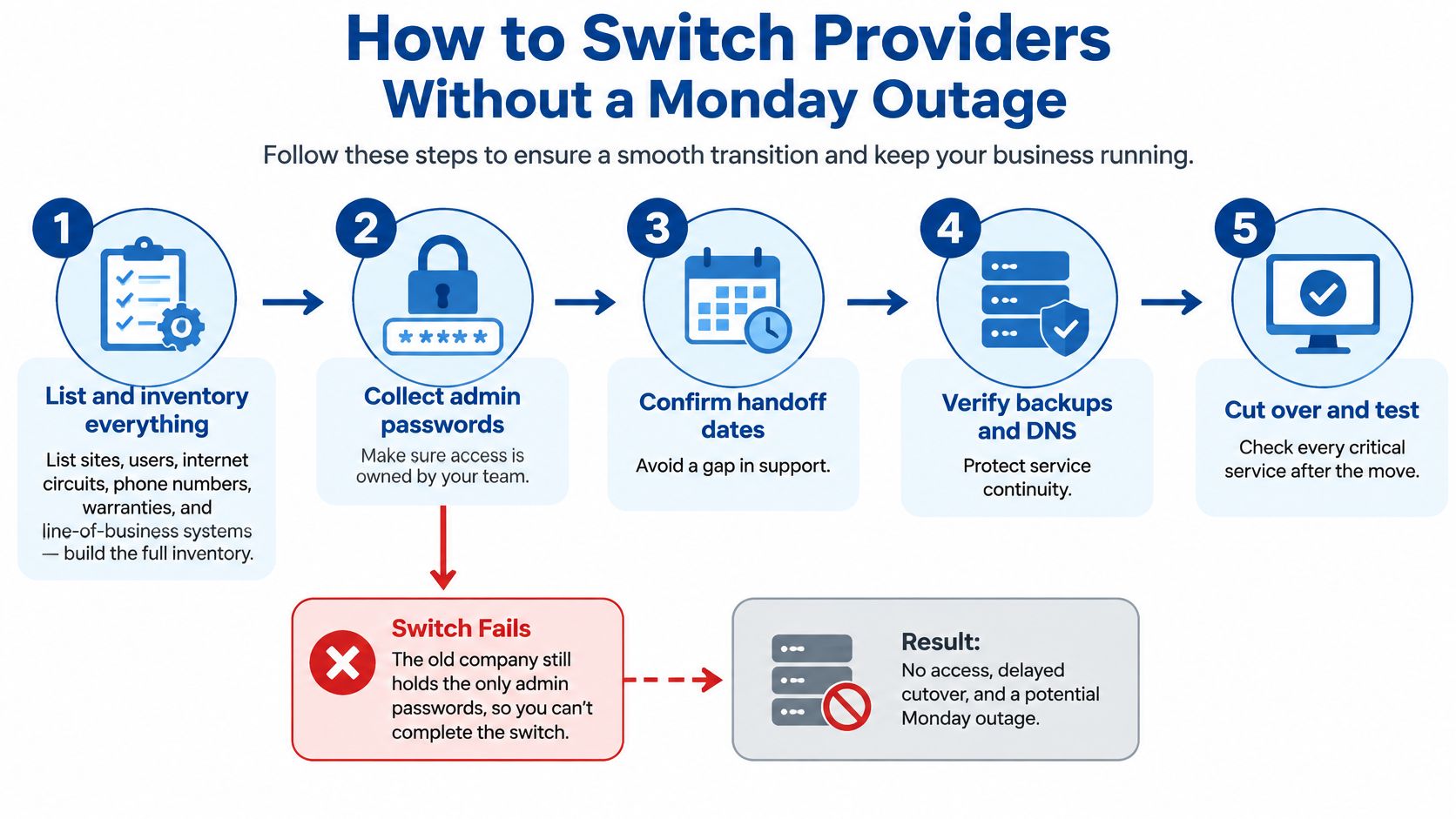
The switch is complete when the organization has a usable handoff document with system ownership, access, support contacts, and tested services. A welcome email doesn't establish who can act when something breaks.
Questions to Ask Before You Sign
A phone system can sound fine in one office and fail in another with a weak connection. Before signing, ask how support will protect everyday work across locations, including who can respond after hours and how the provider will show that important systems can recover.
Ask these questions of any provider:
- Who answers after hours? Find out whether live support is available, how staff reach it, and what happens if the first contact cannot resolve the issue.
- Where is on-site work available? Confirm the locations covered and when a technician would be sent rather than troubleshooting remotely.
- Which systems are included? Clarify whether the agreement covers computer maintenance, network and server support, security, backup, VoIP, wireless, cabling, hosting, and technology setup.
- How is backup recovery checked? Ask what data is backed up, where copies are stored, and how the provider confirms that files can be retrieved.
- Who controls administrator access? Identify who owns the accounts and credentials, and how access is transferred if the agreement ends.
- What happens if the provider handles health information? Ask whether a business associate agreement is appropriate, then confirm requirements with your compliance officer or counsel.
- How are issues tracked across locations? Ask what reporting is available to show open problems and completed work at each site.
- What falls outside the agreement? Get clear instructions for urgent requests and ask how project work is priced.
Get the financial terms in writing, too. Ask whether charges are based on users, devices, sites, or a flat monthly amount, and which requests create extra fees. Projects such as cabling or a new phone system may be handled separately, so confirm the scope before work begins.
RDE Technologies is based in Oceanside, New York, and serves businesses throughout New York and the Tri-state area, with remote support available beyond the region. Its IT assessments can cover cost reduction, risk, data storage, server and network infrastructure, carrier and cloud services, business applications, business continuity, and network security. Administrators comparing 24/7 IT support for New York City offices can use these areas to frame an assessment and clarify what it should address.
RDE Technologies provides IT consulting, managed services, network setups, maintenance, security, backup, and hosting. To discuss support coverage or request an IT assessment for a New York business, contact RDE Technologies.